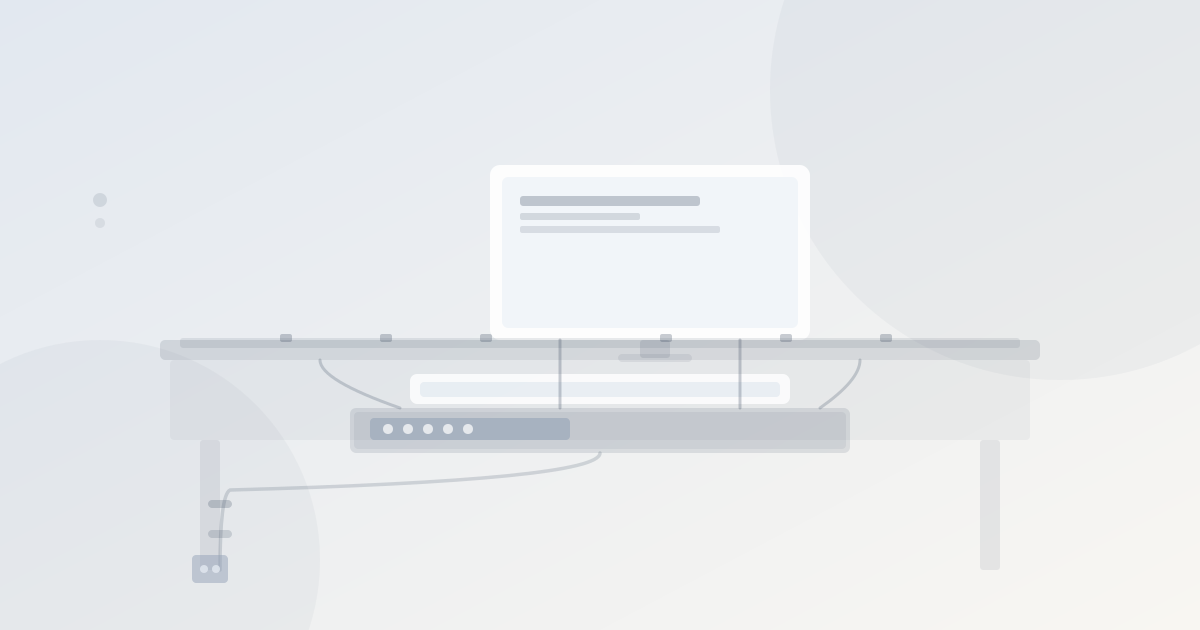
Desk cable management is easier to get right when you think about it in zones rather than trying to fix every cable at once. There are three zones — the desk surface, the desk underside, and the floor-to-wall path — and each requires a different approach. Tackle them in that order and the job stays manageable. For additional product-by-product ideas for each zone, see the cable management ideas guide. For the full strategic system, see the home office cable management guide.
The three cable zones
Desk cable management zones
| Zone | Problem | Solution | Products needed |
|---|---|---|---|
| Desk surface | Cables crossing the work area, tangled at back edge | Route all cables to back edge, clip them flat | Adhesive cable clips, cable spine along back |
| Desk underside | Power strip on floor, cables dangling, floor clutter | Cable tray with power strip, velcro bundles on legs | Cable tray, velcro ties, drill or clamps |
| Floor to wall | One or more cables trailing from desk to wall outlet | Single cable in baseboard raceway or sleeve | Cable raceway, floor cable channel, or sleeve |
Zone 1: The desk surface
The goal on the desk surface is zero loose cables crossing the work area. Every cable should run along the perimeter — typically the back edge — before dropping off the desk.
Back-edge routing: Use adhesive cable clips (also called cable saddles) spaced every 20–30 cm along the underside of the back edge. This holds cables flat against the edge and out of the work area without any drilling.
Cable spine along the back: An adhesive cable channel (a small plastic track with a clip-on lid) mounts along the back edge of the desk and contains multiple cables in one line. Neater than clips for desks with many cables.
Monitor arm benefit: If you use a monitor arm, the monitor’s power and data cable route through the arm column and emerge at the desk rear, removing them from the surface entirely.
Zone 2: The desk underside
The power strip lives permanently in the tray. You never move it. Device cables plug into the strip inside the tray; when you add or remove a device, you only touch the cable at the desk end.
Zone 3: Floor to wall
One cable must travel from under the desk to the wall outlet. The three ways to handle it:
Baseboard raceway: A plastic channel that adheres to the baseboard and covers the cable. Cut to length, clip the lid closed. The cleanest result — cable is fully hidden. Takes 20 minutes.
Floor cable cover: A flat rubber or plastic channel that lies on the floor and covers the cable. No adhesive, no wall contact. Useful when the desk is not against a wall. Less permanent, easier to remove.
Cable sleeve: A fabric sleeve that gathers the floor cable against the wall. No tools, no adhesive. Works on carpeted floors where a raceway won’t adhere cleanly.
Desk-type variations
Not every desk is managed the same way. Corner desks, standing desks, and glass desks each need a modified approach.
Cable management approach by desk type
| Desk type | Surface routing | Under-desk | Floor cable |
|---|---|---|---|
| Standard rectangle | Clips along back edge | Screw-mounted tray, velcro on legs | Baseboard raceway |
| L-shaped corner desk | Clips on both sections, merge at corner | Tray at corner junction, velcro on both leg sets | One exit point at the corner base |
| Standing/sit-stand desk | Clips on back edge with loose loop for height range | Clamp-on tray, velcro in loose bundle on column | Cable sleeve with slack for movement |
| Glass desk | Adhesive clips rated for glass, or cable spine | Clamp-on tray at edge, no drilling | Baseboard raceway or sleeve |
| Wall-mounted floating desk | Clips along wall-mounted back edge | Cables route to wall directly | Wall cable channel from desk to outlet |
Common mistakes
Routing cables too tight. Cables pulled taut wear at the point of tension. Leave a small amount of slack at every bend and attachment point.
One zip tie for the whole leg bundle. A single tie at the top of a leg lets cables splay at the bottom. Tie every 15–20 cm.
Power strip on the floor. A power strip on the floor collects dust, gets kicked, and leaves cables trailing in all directions. Moving it into an under-desk tray is the single most effective cable management step.
Skipping labels. Without labels, adding or removing a device means tracing every cable. Label before setup, not after.
Tidying without fixing the route first. Bundling a chaotic cable route makes it look better but does not fix the underlying mess. Establish the correct path (back edge → leg → tray → wall) before bundling.
A complete desk cable management in sequence
Frequently asked questions
How do I stop cables from falling behind my desk?
Use adhesive cable clips along the back edge of the desk to hold cables in place. A cable spine — a clip-on channel that runs the length of the back edge — is more secure and holds multiple cables in one line. Both prevent cables from sliding off the edge when plugged in or out.
What is the best cable management for a home office desk?
A three-part system: adhesive cable clips along the desk back edge for surface routing, a screw-mounted cable tray under the desk for the power strip, and velcro ties on the legs to bundle cables into clean vertical runs. These three together handle the full desk-to-wall cable path.
How do I manage cables on a standing desk?
Route cables in a loose loop at the back of the desk before bundling — this gives the slack needed when the desk raises to full standing height. Velcro the bundle loosely along the desk column rather than pulling it tight. A cable spine along the moving column keeps the bundle tidy through the full height range.
How many cables does a typical home office desk have?
A single-monitor setup typically has 5–7 cables: monitor power, monitor data (HDMI or DisplayPort), laptop charger, USB hub power, keyboard, mouse (if wired), and ethernet. A dual-monitor setup adds another power and data cable per monitor. Wireless peripherals and a docking station reduce this count significantly.