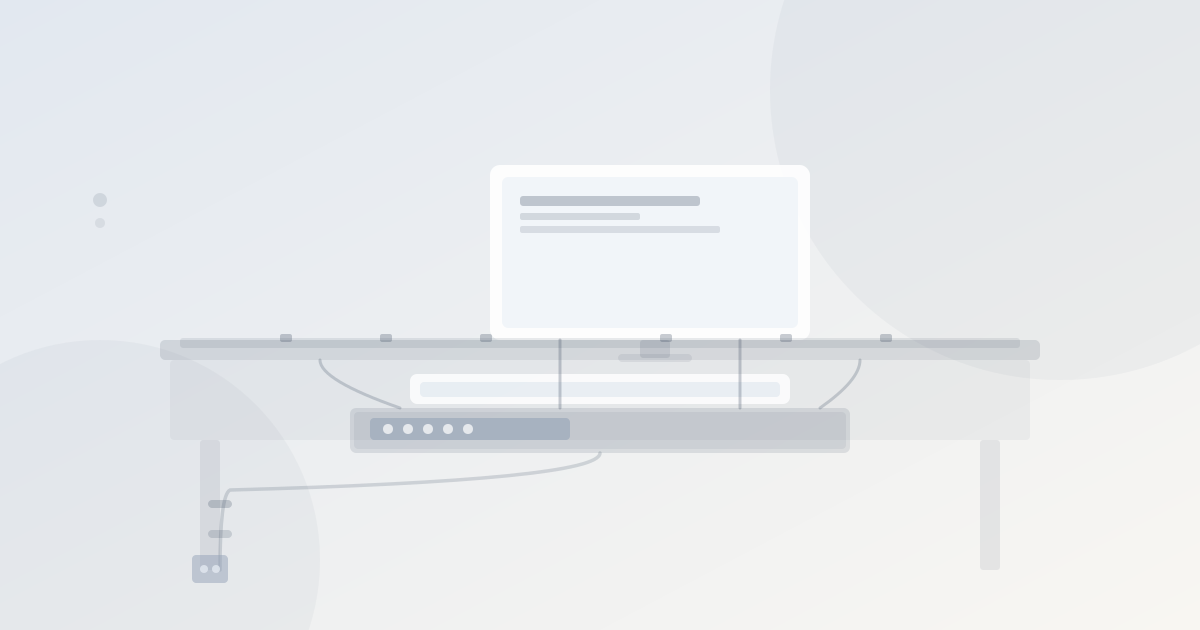
Cable management is most effective when done from scratch during the desk setup. Attempting to manage cables that are already routed and in use is harder. If starting with an existing setup, unplug everything first — it takes ten minutes and gives a clean slate.
What you need
The basic kit for a home office desk:
- Velcro cable ties — reusable; use these instead of zip ties
- Adhesive cable clips (3M Command Cable Clips or similar) — no drilling
- Power strip with a switch — positioned at the rear of the desk or mounted underneath
- Under-desk cable tray or cable box (optional but makes the result cleaner)
Step 1: Clear and map the cables
Unplug everything. Lay all cables flat on the desk and identify:
- Which cables belong to which device
- Which end plugs into the device and which plugs into the power strip or hub
- Which cables can be shortened with a cable clip (excess length) and which are already taut
Map the routing path: cables need to travel from the device, to the back edge of the desk, down the desk leg, and along the floor or wall to the power outlet. The goal is that no cables cross the floor in a walking area.
Step 2: Position the power strip
Where the power strip sits determines where all cables ultimately terminate. Options:
Power strip positions for cable management
| Position | Result | Best for |
|---|---|---|
| Rear of desk surface | Cables reach it easily; strip is on the desk | Minimal setup; quick access to sockets |
| Under the desk (tray or velcro straps) | Strip off the surface; cables drop below desk level | Cleanest result; recommended approach |
| Floor in cable box | Strip concealed; box sits under the desk | Easy to do with no desk modifications |
| Wall-mounted (screwed) | Permanent; very clean; requires drilling | Fixed desks in a permanent setup |
For most home offices, an under-desk cable tray (clamp-mounted, no drilling) or a floor cable box gives the cleanest result with minimal effort.
Step 3: Bundle cables by group
With the power strip positioned, bundle cables into groups:
- Monitor cable group: monitor power cable + video cable (HDMI/DisplayPort) + any USB hub cables — bundle these together with velcro ties at 20–30 cm intervals
- Peripheral group: keyboard, mouse, USB hub power cable — bundle together
- Laptop/tower power group: laptop charger cable — can run separately or with peripherals
Don’t bundle all cables into one big bundle — grouping makes it easier to separate if a single device is later swapped.
Step 4: Route cables to the rear desk edge
Cables should leave each device and travel to the rear edge of the desk before dropping to the power strip. This keeps the desk surface clear.
Use adhesive cable clips stuck to the underside or rear edge of the desk to hold the bundled cables in place. Space the clips at 30–40 cm intervals to prevent the cable bundle from sagging.
Step 5: Route cables from desk to floor
From the rear edge of the desk, cables need to reach the power strip:
- If the strip is under the desk: the cable bundle drops down from the rear edge to the under-desk tray
- If the strip is on the floor: clip the bundle to a desk leg and run it to the floor, then along the skirting board to the strip
Use cable clips on the desk leg to hold the vertical run in place.
Step 6: Manage excess length
Excess cable length is the main source of cable spaghetti in home offices. Solutions:
- Loop and tie: fold the excess into a loop and secure with a velcro tie; tuck the loop into the cable tray or behind the desk
- In-line cable shortener: small plastic reels that hold excess cable length; available for common cable types
- Cable sleeve: a flexible sleeve that bundles and covers cables; useful for very long runs with multiple cables
Frequently asked questions
What is the best way to manage cables under a desk?
An under-desk cable tray (clamp-mounted, no drilling) holds the power strip and bundled cables off the floor. Combined with adhesive cable clips along the rear desk edge and velcro ties to bundle the cables, this gives a clean result with minimal cost. The tray keeps everything below the desk surface and out of sight from a seated position.
Should I use zip ties or velcro ties for cable management?
Velcro ties for home office cable management. Zip ties lock permanently — if you need to add a cable, replace a device, or adjust the bundle, you cut the zip tie and replace it. Velcro ties open and reclose, making adjustments straightforward. Use zip ties only for permanent installations where the setup will never change.
How do I hide the power strip?
Mount it under the desk using a cable tray or adhesive velcro straps, or put it in a cable box on the floor under the desk. Both keep the strip out of sight from the desk surface. The cable box option requires no installation — the box sits on the floor and the strip's cables run through an opening in the box.
How long does cable management take for a standard home office desk?
30–45 minutes for a standard desk setup with 4–8 devices, if done from scratch with cables unplugged. Longer if the setup is complex or if you are retrofitting management onto existing cables that are already routed and in use. The first time takes longer; maintaining it is fast once the routing is established.